Set up and use Microsoft Outlook
By Webmaster | OneNet on February 9, 2026
BeginnerSet up and use Outlook
After installing your Microsoft 365 apps, you'll next be able to configure Outlook to start using email, calendar, and contacts.
- Open Outlook.
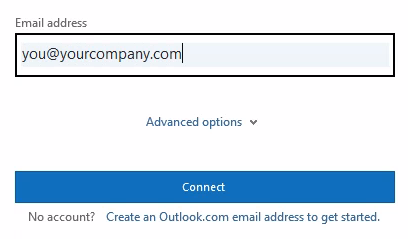
- Enter your Microsoft 365 email address, and then select Connect.
- Enter any additional email addresses that you want to use and then select Next.
- If prompted, enter a password, and then select Sign in.
- After all your accounts have been added, choose if you want to set up Outlook mobile or wait until later.
- Select Done. It can take several minutes for Outlook to download your email and other data.
Now you can view email for the accounts you added. You can also view your calendar, contacts, and tasks.
Next steps
For steps to migrate your old email, calendar, and contacts to Microsoft 365, see Move your old email, calendars, and contacts to Microsoft 365.
Related topics
Microsoft 365 help for small businesses on YouTube
Set up Outlook for Microsoft 365 for business email
Set up mobile devices for Microsoft 365 for business users
Getting started with the new Outlook for Windows
Was this article helpful?
More articles on MICROSOFT