How to install VMware tools on Ubuntu / Debian
By reCIPHER™ Webmaster on May 27, 2025
Intermediate| SOURCE | https://linuxier.com/how-to-install-vmware-tools-on-ubuntu-easy-steps/#:~:text=To%20install%20VMware%20tools%20on%20Ubuntu%2C%20you%20can,run%20%20vmware-toolbox-cmd%20-v%20to%20confirm%20the%20installation. |
| TOPIC | How to Install VMware Tools Ubuntu [6 Easy Steps] |
| GUIDE |
To install VMware tools Ubuntu, you can follow these steps:
- Update and upgrade your system by running
: sudo apt updateandsudo apt upgrade. - Install Open VM Tools by executing:
sudo apt install open-vm-toolsin the Terminal. - Verify VMware Tools status and functionality: After installation, reboot your virtual machine. Then, run
vmware-toolbox-cmd -vto confirm the installation.
Explore the guide below to learn the step-by-step instructions to VMware tools install Ubuntu and common errors that can occur during the installation.
Is your Ubuntu virtual machine not performing as well as you’d like? Installing VMware Tools can make a big difference by enhancing graphics, improving mouse and keyboard integration, and boosting network performance. In this post, I’ll guide you through the installation process step by step and help you avoid common errors. You’ll learn what VMware Tools is, how to install VMware tools Ubuntu, and how to troubleshoot issues. By the end, your virtual machine will run smoother and more efficiently. Let’s dive in and enhance your VM experience!
What is VMware Tools?
VMware Tools is a set of utilities and drivers that enhance the performance and usability of virtual machines running on VMware software. When you install VMware Tools on a virtual machine, it includes:
Drivers: These help your virtual machine’s operating system understand and communicate better with the virtual hardware.
Utilities: These offer features like better mouse handling, time synchronization, and improved graphics performance.
Why Install VMware Tools Ubuntu?
Here are four main benefits of installing VMware tools on Ubuntu:
- Enhanced Graphics and Display Features: VMware Tools improves the graphics performance of your Ubuntu virtual machine. It allows you to adjust the screen resolution dynamically and use multiple monitors more efficiently. This makes your display look better and more responsive.
- Improved Mouse and Keyboard Integration: Without VMware Tools, you might notice some lag or choppiness when using your mouse and keyboard. VMware Tools smooths out this interaction, making it feel like you are working on a regular physical machine. You can seamlessly move your mouse between the host and the virtual machine without having to click to release the cursor.
- Seamless File Sharing Between Host and Guest: VMware Tools makes it easy to share files between your host machine (the computer running VMware) and your Ubuntu virtual machine. You can set up shared folders, drag and drop files, and copy and paste text between the host and guest systems. This simplifies tasks that require moving data back and forth between the two environments.
- Enhanced Network Performance: With VMware Tools, your Ubuntu virtual machine gets better network performance. It includes optimized network drivers that improve the speed and reliability of your internet and network connections within the virtual machine. This means faster file transfers, better online performance, and a smoother experience when using network resources.
How to Install VMware Tools on Ubuntu
To install VMware Tools on Ubuntu, first, open your terminal and update your package list with sudo apt update. Next, install the Open VM Tools package by running sudo apt install open-vm-tools open-vm-tools-desktop. After the installation, reboot your system with sudo reboot. This process ensures that VMware Tools are properly installed, enhancing your virtual machine’s performance and usability.
That was the quick answer. Here are the detailed steps to install VMware on Ubuntu:
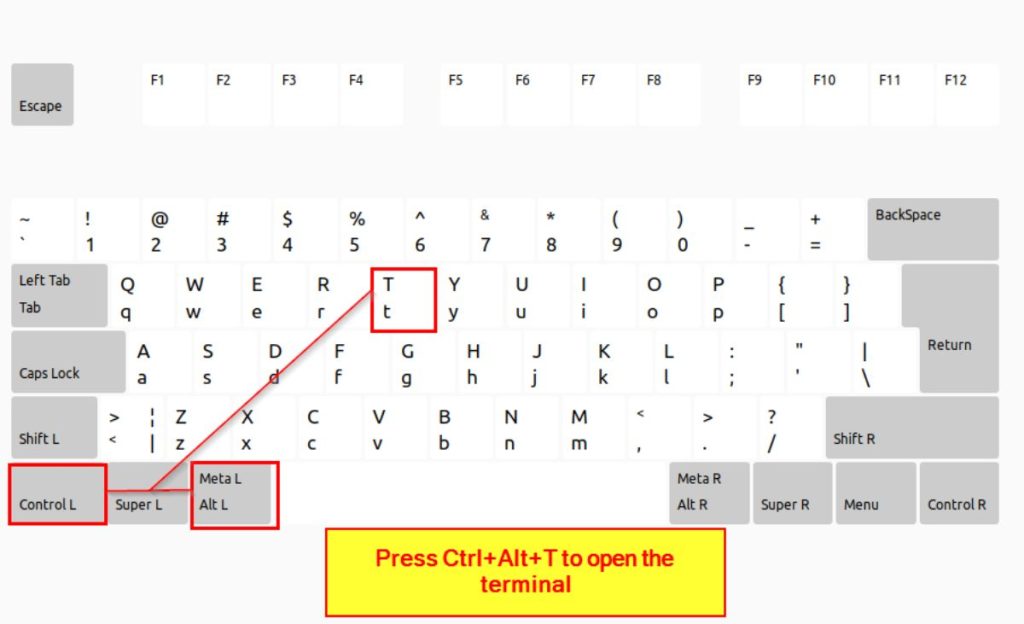
- Open your Terminal window.
- Update the package lists and metadata from the repositories by running:
sudo apt update
This command fetches the latest information about available packages and their versions from the configured repositories.

- Upgrade the installed packages to their latest available versions by executing:
sudo apt upgrade
This command installs the latest updates and security patches for the installed packages on your system.

- Ubuntu install open-vm-tools by executing the following command in the Terminal:
sudo apt install open-vm-tools
- After the installation is complete, reboot your virtual machine to ensure that all components are loaded correctly.

- Run the following command to verify the status of VMware Tools in your Ubuntu virtual machine:
vmware-toolbox-cmd -v
The command will show the VMware tools version.

5 Common Errors When Installing VMware Tools on Ubuntu
Installing VMware tools on Ubuntu is a simple process, but encountering errors is not uncommon. Avoiding these common errors will help you optimize your virtual machine’s performance and unlock the full benefits of VMware Tools. Here are five common errors that you may encounter:
- ❗️ VMware Tools Not Found: This error occurs when the VMware Tools ISO file is missing or the VM’s CD/DVD drive isn’t connected. Ensure the ISO is mounted correctly and accessible. Check your VMware hypervisor settings to confirm the ISO is presented to the VM.
- ⚠️ Outdated Linux Kernel: Incompatibility issues with an outdated kernel can cause VMware Tools installation to fail. Keep Ubuntu updated with the latest kernel using
sudo apt updateandsudo apt upgrade. Verify supported kernel versions with the VMware compatibility matrix. - 💾 Insufficient Disk Space: Lack of disk space can stop VMware Tools installation. Ensure there’s enough free space by removing unnecessary files or expanding the virtual disk. Check space with
df -hbefore starting the installation. - 🔄 Dependency Issues: Dependency conflicts can occur during installation. Use package managers like
aptordpkgto identify and resolve these conflicts. Check dependencies and versions withapt-cache policy package-name. - ❌ Incompatible VMware Tools Version: Using an incompatible version of VMware Tools can cause errors. Match the VMware version with your VMware hypervisor version for compatibility. Refer to VMware documentation for correct version information. Avoid generic VMware Tools from open-source repositories.
Ubuntu Install VMware Tools: Summing Up
In this article, I’ve covered step-by-step method to install VMware Tools on Ubuntu. I also covered common errors and troubleshooting tips. With these guides, you’ll enhance your virtual machine’s performance and usability.
To expand your knowledge further, I recommend reading more about:
- Creating desktop shortcuts on Ubuntu to streamline your workflow and access applications quickly.
- Clear the apt cache in Linux to free up disk space and resolve package issues.
- Fix the “You Have Held Broken Packages” error to ensure smooth software installation and updates.
Frequently Asked Questions
Does VMware Tools Require a Reboot After Installation?
Generally, VMware Tools installation on Ubuntu does not necessitate a reboot of the virtual machine. After the installation process is complete, users can immediately start benefiting from the enhanced features provided by VMware Tools without the need for a reboot. However, certain specific updates or configurations may require a reboot to ensure that all changes take full effect. If prompted to reboot during the installation process or after specific updates, it is recommended to procunctionalities provided by VMware Tools
How do VMware Tools impact CPU and memory utilization?
VMware Tools are specifically designed to be lightweight and optimized for minimal resource consumption. Consequently, their impact on CPU and memory utilization is generally negligible. The tools are developed to work efficiently with the underlying virtualization layer, ensuring that they consume only a small fraction of the system’s resources. By employing techniques like shared memory, optimized drivers, and intelligent scheduling, VMware Tools prioritize the virtual machine’s performance while keeping CPU and memory usage at an optimal level. As a result, you can experience enhanced virtual machine performance without significant overhead on the host system.
Is it necessary to uninstall previous versions of VMware Tools before updating?
In most cases, updating VMware Tools involves an automatic replacement of the older version with the latest one. This process ensures a smooth transition to the updated version without manually uninstalling the previous iteration. However, to avoid any potential conflicts or issues during the update, it is advisable to uninstall the existing VMware Tools before installing the new version. This extra step guarantees a clean installation and helps eliminate any remnants of the previous version that may interfere with the new version’s functionality, ultimately ensuring a more seamless update process.
Can I revert to a previous version of VMware Tools if an update causes issues?
Yes, you can easily revert to a previous version of VMware Tools if an update causes unexpected issues or disrupts the virtual machine’s functionality. VMware’s snapshot feature comes to the rescue in such situations. Before initiating any update, take a snapshot of the virtual machine in its current state. Should any problems arise after the update, simply revert the virtual machine to the snapshot taken before the update. This will restore the virtual machine to a stable and known working state, effectively undoing the update and resolving any associated issues.
Does VMware Tools affect the virtual machine’s security posture?
Yes, VMware Tools play a role in enhancing the virtual machine’s security posture. One critical security aspect provided by VMware Tools is time synchronization. Accurate system time is crucial for secure network communication and security certificates’ validity. VMware Tools ensure that the virtual machine’s time remains in sync with the host system, reducing the risk of time-related security issues. Additionally, other VMware Tools features, such as improved mouse integration and shared folders, aid in creating a seamless and secure user experience within the virtual machine environment.
More articles on VMWare